Choosing the Right Medical and Health Care Icon Set: A Guide to Quality and Usability
In the world of digital design and communication, clarity is paramount. When you’re creating a website for a clinic, a public health infographic, an educational presentation, or a mobile app for patient services, your visual elements must convey information instantly and accurately. This is where a well-crafted Medical and Health Care Icon Set becomes an indispensable tool. Far more than just decorative graphics, these icons serve as a universal language, guiding users, explaining complex services, and establishing a professional tone. The bundle you’re considering, with its 20 filled-style icons, promises a versatile solution for projects ranging from UI design to print posters. But the value of such a set isn't just in having the icons—it's in choosing and using them wisely.
The Overlooked Foundation: File Formats and True Customizability
A common, and often costly, misunderstanding is equating "high-quality" with simply having a PNG file. Many creators, especially beginners, download an icon set, see the PNGs look crisp on screen, and proceed directly to their project. The problem arises when they need to adapt. Perhaps the branding color changes, or the icon needs to be scaled dramatically for a large banner. A PNG file locks you into a specific size and color. Using it beyond its intended resolution leads to pixelation, and changing colors becomes a tedious, imperfect editing job in a photo tool.
The practical solution is baked into the specifications of a good bundle: vector source files. When a Medical and Health Care Icon Set includes Adobe Illustrator (AI), EPS, and SVG files, it’s offering true customizability. These are not just extra downloads; they are the core of the product. A vector file describes the icon using mathematical paths, not pixels. This means you can scale an SVG icon from a tiny app button to a full-wall poster without any loss of quality. Changing the color is a matter of selecting a shape and applying a new fill in your vector software—a process that takes seconds and maintains perfect edges. Before you commit to any icon set, check the ZIP contents. If it lacks these source vector formats, you are buying a limited asset, not a flexible tool.
Beyond the Preview: Assessing Design Coherence and Scope
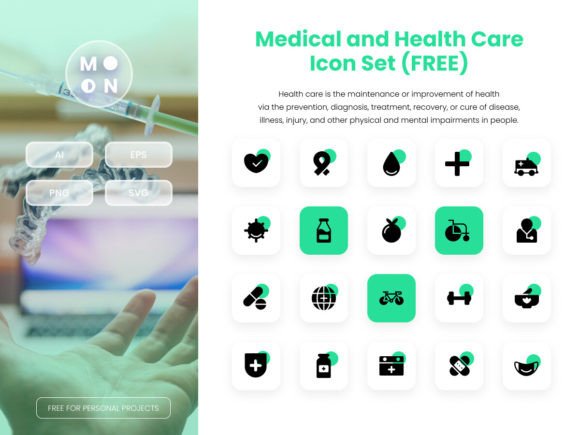
Another subtle mistake is selecting icons based solely on a single appealing preview image. The bundle advertises 20 icons, but do they form a coherent set? A professional Medical and Health Care Icon Set should have a consistent visual style throughout—uniform stroke weights, similar detail levels, and a harmonious family feel. Inconsistent icons, where a "heart" icon is overly detailed while a "stethoscope" is overly simplistic, can make your final design look disjointed and amateurish.
Scrutinize the full list of icons. Does the scope match your project needs? A set containing generic symbols like "medicine," "doctor," and "hospital" is useful, but if your project is about specialized dentistry or physiotherapy, you might need more specific imagery. Think ahead. Also, consider the filled style itself. While bold and clear, it might not suit a design requiring delicate line icons. The advice here is to look for galleries showing each individual icon, not just a grouped collage. Evaluate them as a system. This diligence ensures the set elevates your project's professionalism rather than undermining it.
The Drag-and-Drop Trap: Understanding Workflow Integration
The feature "Easily Drag and Drop" is appealing, but it can foster a workflow misconception. Some users assume this means they can simply drag PNGs into their PowerPoint or web editor and be done. For quick, one-off use, that might work. However, for integrated, high-quality work across multiple platforms, this approach is inefficient. You lose the benefits of vector editing, and you create a asset library that's messy and inconsistent.
A better approach is to establish a simple master library. Upon downloading, first open the source AI or SVG file in a vector program like Illustrator, Affinity Designer, or even free tools like Inkscape. Here, you can do bulk operations: change the entire set to your brand's primary color, export PNGs at the exact sizes you need for different purposes (e.g., 32px for the app, 300px for the flyer), and organize them into a project folder. Now, you have tailored assets ready for true drag-and-drop into any project. This extra ten minutes of setup saves hours of repetitive editing later and guarantees visual consistency everywhere your Medical and Health Care Icon Set appears.
Pixel-Perfect Isn't Just a Buzzword: It's a Usability Requirement
The term "Perfect Pixel" often gets glossed over. In context, it means the icons are designed on a precise grid, with edges that align cleanly at common icon dimensions. This is critical for user interface (UI) and mobile app design. An icon that is 24px by 24px but has a one-pixel misalignment can look blurry or out of place next to other interface elements, degrading the perceived quality of your entire application.
To avoid this, test the icons at the sizes you intend to use. Open the PNG or SVG at 16px, 24px, 48px—standard UI sizes—and inspect the edges. They should be sharp, with no anti-aliasing artifacts. A reputable Medical and Health Care Icon Set will have been crafted with these technical constraints in mind. If you're designing a health app where user trust is built on clarity and precision, this technical due diligence is as important as the icons' thematic accuracy.
Color Flexibility and Accessibility Considerations
The ability to "Easily change the color" is a powerful feature, but it's often used only for branding matching. A more advanced, and socially responsible, application is for accessibility. Health information must be accessible to all. You might need to adjust icon color contrast to meet WCAG guidelines for visually impaired users, or create versions with higher contrast for printing on low-quality paper in community health flyers.
With a vector-based Medical and Health Care Icon Set, this is straightforward. You can create a high-contrast version (e.g., dark blue on a very light background) from the same source file without redesigning the icon. Before using icons in public-facing materials, consider their color contrast in context. A light green icon on a white background might convey "health" aesthetically but fail communicate functionally to some viewers. Use your editing power to enhance inclusivity.
Ultimately, investing in a Medical and Health Care Icon Set is about investing in efficient, effective communication. By prioritizing vector source files, evaluating design coherence, integrating icons smartly into your workflow, verifying pixel-perfect execution for digital use, and leveraging color change for accessibility, you move from simply having icons to mastering them. This transforms a bundle of 20 graphics into a durable, adaptable asset that serves your professional needs across websites, apps, presentations, and print, ensuring your health-related messages are not only seen but clearly understood.